The best software youtube thumbnail debate usually comes down to two main contenders: Canva and Adobe Photoshop. Both can create excellent thumbnails. Both are used by top YouTube creators. But they serve different users with different needs, budgets, and workflows. Here’s the complete thumbnail editing software comparison in 2026.
Key Takeaways
- Canva is better for creators who want fast, template-based workflows without deep design knowledge
- Photoshop is better for creators who need pixel-level control, advanced photo editing, and custom compositions
- For most YouTube creators in 2026, Canva’s free or Pro tier delivers excellent results faster
- Photoshop’s AI tools (Firefly, Generative Fill) have significantly improved its thumbnail workflow in 2024-2026
- Neither is universally “better” — your choice should match your skill level, time constraints, and design needs
Quick Summary
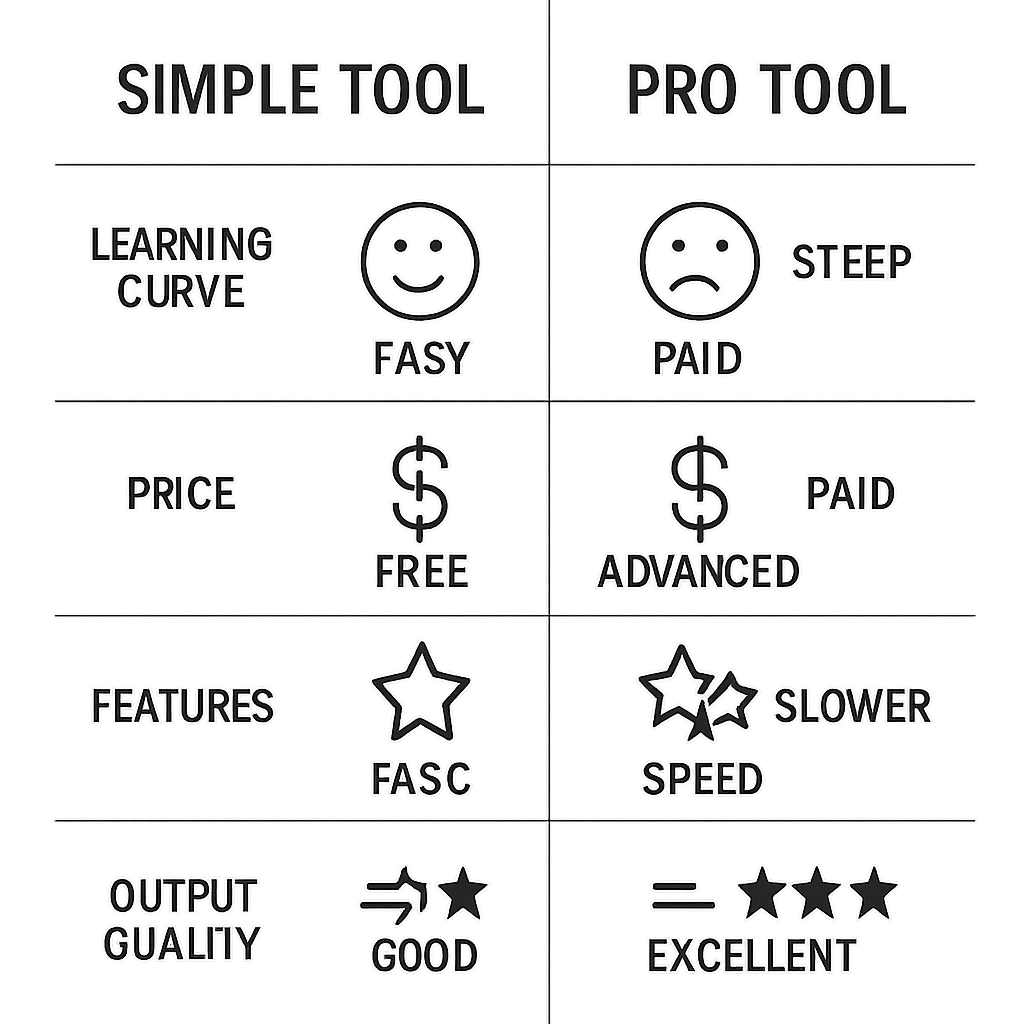
| Factor | Canva | Photoshop |
|---|---|---|
| Price | Free / $12.99/month | $20.99/month (Creative Cloud) |
| Learning curve | Low | Steep |
| Templates | 500+ YouTube-specific | None built-in |
| Photo editing | Basic | Professional-grade |
| Background removal | One-click (AI) | Advanced (Select Subject) |
| AI generation | Yes (Magic Media) | Yes (Firefly) |
| Output quality | Excellent | Excellent |
| Mobile app | Strong | Limited |
| Best for | Fast template workflow | Complex custom designs |
Canva for YouTube Thumbnails
What Canva Does Well
Templates: Canva has hundreds of pre-built YouTube thumbnail templates at exactly 1280×720. For creators who don’t want to design from scratch, these are a massive time saver. Picking a template that fits your niche and replacing the text and photo takes 10-15 minutes.
Background removal: Canva’s one-click background remover (available on free and Pro plans) handles most portrait photos well. For clean studio-style photos, it works without any manual adjustment.
Font library: 3,000+ fonts available in Canva, including all the popular thumbnail fonts (Bebas Neue, Anton, Montserrat). Finding the right font is fast.
Collaboration: Canva’s web-based interface makes it easy to share and collaborate on thumbnail designs with editors or team members.
Export: Canva exports directly at the correct dimensions (1280×720) in JPG or PNG with one click.
Canva’s Limitations
Layer control: Canva’s layer system is simpler than Photoshop’s. Complex compositions with many overlapping elements can become difficult to manage.
Photo retouching: Canva has basic photo adjustment tools but can’t match Photoshop for skin retouching, frequency separation, complex masking, or color grading.
File format support: Canva doesn’t work with RAW photos, PSD files, or many professional file formats.
Photoshop for YouTube Thumbnails
What Photoshop Does Well
Photo editing: No tool matches Photoshop for photo retouching quality. If your thumbnails require flawless skin, complex hair masking, or heavy color grading, Photoshop is the right choice.
Precise masking: Photoshop’s Select and Mask workspace handles complex edges (hair, fur, intricate backgrounds) with far more control than Canva’s one-click remover.
Layer complexity: PSD format supports complex layered compositions with groups, masks, adjustment layers, and smart objects — making it easier to maintain and update templates over time.
Generative Fill (Adobe Firefly AI): Photoshop’s AI tools can extend backgrounds, replace elements, and generate new content — powerful for creating thumbnails that would otherwise require stock photography.
Total design control: If you know exactly what you want visually and have the design skills, Photoshop can execute it.
Photoshop’s Limitations
Price: $20.99/month for Photoshop alone, or $54.99/month for the full Creative Cloud suite. This is significantly more than Canva.
Learning curve: Using Photoshop effectively for thumbnails requires knowing layers, masks, adjustment layers, smart objects, export settings, and color modes. This isn’t beginner-friendly.
No templates: Photoshop has no YouTube thumbnail templates built in. You start from a blank canvas every time (unless you build your own PSD template library).
Slower for simple tasks: For a basic “swap photo and text” thumbnail update, Canva is faster. Photoshop’s power comes at the cost of speed for simple operations.
Which Should You Choose?
Choose Canva if:
- You’re new to design
- You want to create thumbnails in 15-20 minutes
- You prefer templates to starting from scratch
- Your budget is $0 to $13/month
- Your thumbnails are primarily text + photo combinations (the most common type)
Choose Photoshop if:
- You have existing Photoshop skills or are willing to learn
- Your thumbnails require heavy photo editing (retouching, complex masking)
- You’re already paying for Adobe Creative Cloud for other work
- You want maximum control over every aspect of the design
- You’re building a large template system that other editors will use
The Hybrid Approach
Many professional YouTube creators use both:
- Canva for quick thumbnails, templated series, and team collaboration
- Photoshop for hero thumbnails, complex custom designs, or when photo quality matters most
This isn’t a contradiction — the right tool for the right job.
Other Alternatives Worth Considering
The Canva vs Photoshop comparison is the most common, but it’s not exhaustive:
- Figma: Free for personal use, excellent for creators who already use it for other design work. No thumbnail templates but full design control.
- Adobe Express: Free tier with stronger AI tools than Canva’s free plan. Worth trying before committing to Canva Pro.
- Affinity Photo: One-time payment (approximately $69) alternative to Photoshop with comparable features.
- GIMP: Free, open-source alternative to Photoshop. Powerful but outdated UI.
For a broader comparison of free thumbnail creation tools, see Best Free YouTube Thumbnail Makers in 2026.
Conclusion
For most YouTube creators in 2026, Canva is the practical choice: faster, cheaper, and good enough for excellent thumbnails. Choose Photoshop when your thumbnails require photo editing quality that Canva can’t deliver, or when you’re already comfortable in the Adobe ecosystem.
Regardless of tool, the design principles are the same. For those, see How to Make YouTube Thumbnails That Get Clicks.