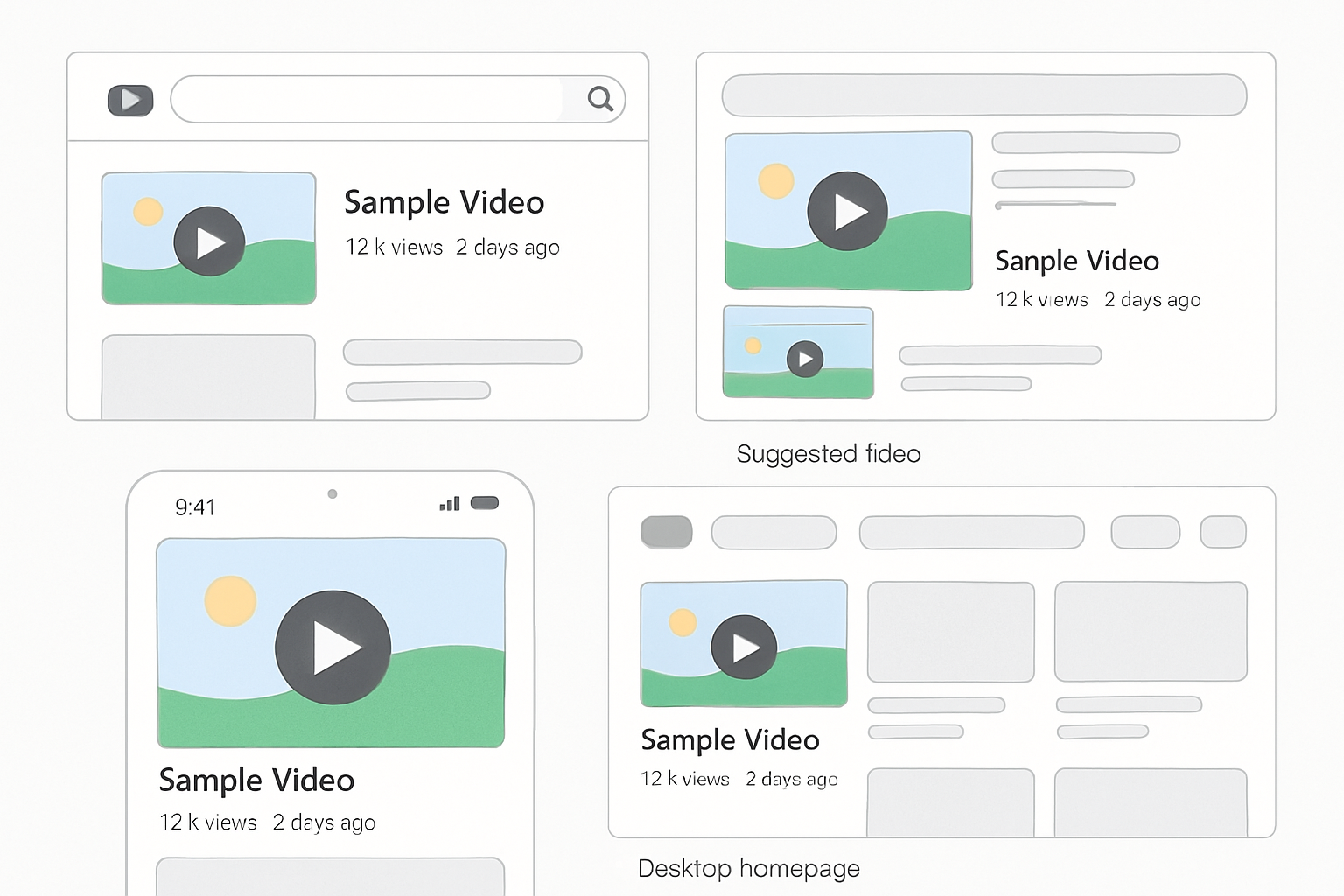
Uploading a thumbnail and then seeing it look wrong in YouTube’s feed is a frustrating and time-consuming mistake. A youtube thumbnail preview tool lets you simulate how your thumbnail will appear in search results, the home feed, and on mobile before you commit to uploading it. Here’s what these tools do, how to use them, and which options are available in 2026.
Key Takeaways
- A thumbnail preview tool shows your thumbnail at the exact sizes YouTube uses in different contexts
- The most important preview contexts: search results (approximately 320×180), mobile feed, and the video page header
- You can build a DIY preview by scaling your thumbnail down to 320×180 in any design tool
- check thumbnail before upload by verifying text readability at small sizes — this is the most common failure point
- A thumbnail tester helps you catch issues with text being too small, subjects being cropped, or colors that disappear at small sizes
Why Preview Before Upload Matters
Most thumbnail design happens at 1280×720 on a large monitor. What looks great at full size often fails at the sizes YouTube actually displays — YouTube’s own custom thumbnail guidance recommends designing for the small-format reality of the feed:
- Search result size: ~320×180 pixels (25% of your canvas size)
- Mobile home feed: ~160×90 to 240×135 pixels
- Sidebar recommendation: ~168×94 pixels
- Video page header (before play): Up to 1280×720 on large screens
Text that looks perfect at 1280×720 can become unreadable at 320×180. A face that seems prominent can become unrecognizable at thumbnail display sizes. Google’s web.dev guidance on serving images at the right size makes the same point in a broader context — designing and testing at the actual display size matters. Previewing before upload catches these issues before they go live.
What a Thumbnail Checker Does
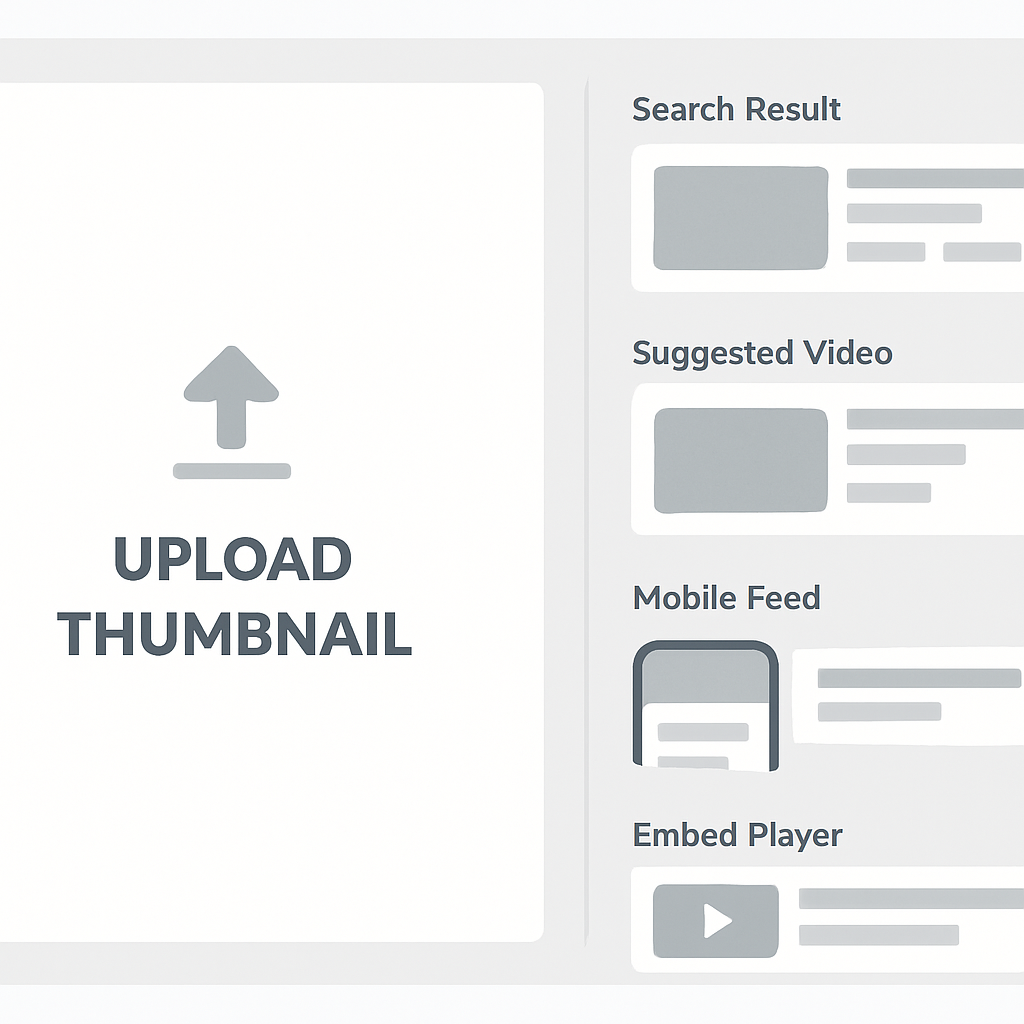
A youtube thumbnail checker shows your uploaded image in simulated YouTube page layouts at accurate sizes. The best tools show:
- Search results view: Your thumbnail as it appears in YouTube search alongside competing thumbnails
- Home feed view: How it looks in the browse/home feed cards
- Mobile view: Phone-sized display simulation
- Sidebar view: How it looks in the “Up Next” recommendations
Some advanced tools also simulate:
- Dark mode vs light mode display
- Varying screen sizes (phone, tablet, desktop)
- Your thumbnail alongside sample competitor thumbnails from your niche
DIY Thumbnail Preview: Fastest Method
You don’t need a dedicated tool to preview your thumbnail. The fastest DIY approach:
In Canva, Figma, or Photoshop:
- Export your thumbnail at 1280×720.
- Open it in an image viewer.
- Scale the view to 25% — this approximates the 320×180 search result size.
- Check: Can you read the text? Is the face recognizable? Do the colors pop?
In a browser:
- Drag the thumbnail file into a browser tab.
- Use browser zoom to scale down to approximately 20-25%.
- Evaluate the thumbnail at that size.
This takes less than a minute and catches 90% of thumbnail issues before upload.
Online Thumbnail Preview Tools in 2026
Several tools specifically simulate YouTube’s thumbnail display:
1. Thumbnail Blaster Preview Allows you to upload an image and see it in a simulated YouTube search page. Shows your thumbnail in context alongside filler placeholder thumbnails.
2. Canva’s Thumbnail Preview Feature Canva Pro includes a “preview” mode that shows your thumbnail at various sizes within your canvas. Free users can use the manual scaling approach described above.
3. mockupthumbnail.com Shows your thumbnail in multiple YouTube interface contexts (search, home feed, video page). One of the more complete free options available.
4. YouTube Studio’s Own Preview When you upload a custom thumbnail in YouTube Studio, you can see a preview before saving. This is the most accurate preview since it uses YouTube’s actual rendering — but it requires having the video already uploaded.
What to Check in Your Thumbnail Preview
Use your thumbnail tester checklist:
Text readability:
- Can you read every word at 320×180 size?
- Is the font bold enough to remain legible?
- Is the contrast between text and background sufficient?
Subject clarity:
- Can you recognize the face or key object?
- Is there one clear focal point?
- Does the subject stand out from the background?
Color visibility:
- Does your thumbnail stand out against a white YouTube interface?
- Are the colors vibrant enough at small sizes?
- Are similar colors (e.g., dark blue background with dark green text) distinguishable?
Composition check:
- Is anything important cropped by the aspect ratio?
- Does the thumbnail work as 9:16 crop (if it may appear in Shorts contexts)?
- Is the bottom-right corner clear of important content? (YouTube overlays duration there)
Using the Downloader as a Comparison Tool
One of the best ways to evaluate your thumbnail is to compare it against thumbnails from successful channels in your niche. The YouTube Thumbnail Downloader lets you fetch any thumbnail in HD — download 5-10 examples from top videos in your category and put them alongside your thumbnail at the same display size.
This gives you immediate visual feedback on whether your design fits the visual language of your niche while standing out enough to get noticed.
The thumbnail preview youtube workflow
- Design at 1280×720 in your tool of choice.
- Export and open in a browser tab.
- Scale to 25% (keyboard shortcut: Ctrl/Cmd + Scroll or browser zoom).
- Run the checklist above.
- If something fails: Go back, fix it, re-export.
- Final check: Compare against downloaded competitor thumbnails at the same scale.
- Upload when it passes at small size.
This workflow adds 2-3 minutes to your thumbnail process and prevents the frustration of uploading a thumbnail only to see it look wrong in the feed.
Conclusion
A youtube thumbnail preview tool — whether dedicated software or a DIY scaling approach — is a simple but important step in the thumbnail creation process in 2026. The most common failure mode (text that’s unreadable at small sizes) is completely preventable with a 2-minute preview check.
For design guidance that helps thumbnails perform at any size, see How to Make YouTube Thumbnails That Get Clicks and YouTube Thumbnail Size Guide.